How to Scan a QR Code From an Image and Create Your Own (Free)
Got a QR code in a screenshot or photo? Learn how to read it without a second phone, check where it leads, and create your own QR code for a link, Wi-Fi or WhatsApp, with your colours and logo.
On this page
QR codes are everywhere: on menus, posters, business cards, invoices and payment screens. Scanning one with your phone camera is easy, but what if the QR code is already on your phone, in a screenshot or a photo? In this guide you will learn how to scan a QR code from an image, check where it really leads, and create your own QR code in minutes with our free QR Code Scanner & Generator.
What is inside a QR code?
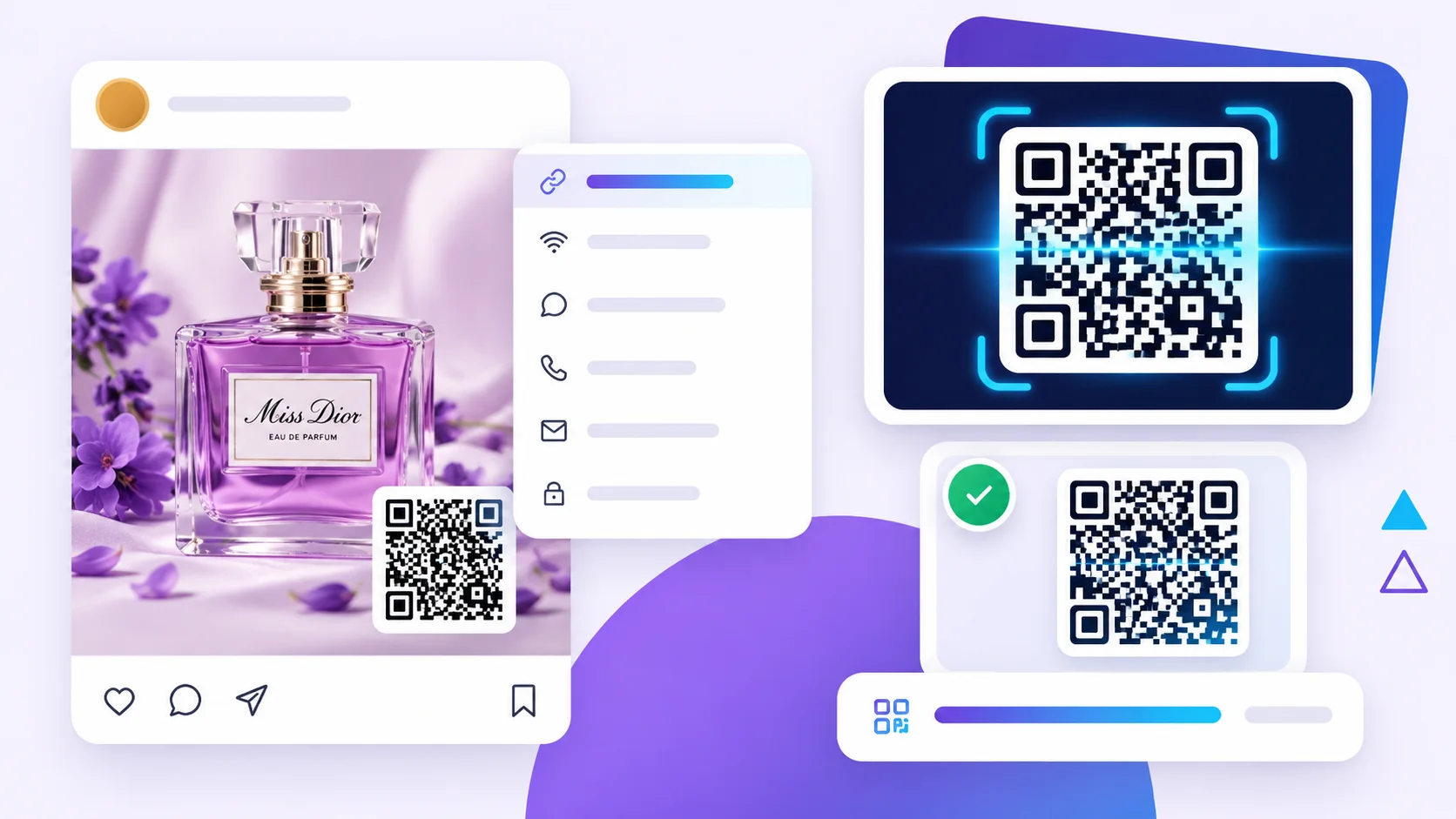
A QR code is simply text stored as a pattern of squares. That text can be:
- a website link,
- Wi-Fi network details (name, password and security type),
- a WhatsApp chat with a ready message,
- a phone number, SMS or email,
- or plain text such as a code or a short note.
When you scan it, your device reads the text and offers the right action, such as opening the link or joining the Wi-Fi network.
How to scan a QR code from a photo or screenshot
- Open the QR Code Scanner on your phone or computer.
- Add the image. Drop the photo or screenshot into the box, click Choose image, or paste it with Ctrl + V. You can also tap Use camera to scan a printed code.
- Read the result. The content appears straight away. Links, Wi-Fi details, phone numbers and emails are recognised and shown clearly.
- Copy or open it. Copy the text, or open the link. For your safety, only normal web links (http and https) can be opened directly.
Everything happens inside your browser. The image is never uploaded, so it is safe to scan codes that contain private Wi-Fi passwords or personal details.
Check a QR code before you open it
Fake QR codes are a growing problem. Criminals stick their own codes over real ones on parking meters, posters and restaurant tables, or send them in emails, to lead people to fake payment and login pages. Before you open a link from a QR code:
- Read the full address. Make sure the website name is exactly the one you expect, with no extra letters or strange endings.
- Be careful with short links. Shortened addresses hide where they really go.
- Never enter passwords or card details on a page you opened from an unknown QR code.
- Look at printed codes. A sticker placed on top of another code is a warning sign.
Scanning from an image first lets you see the full content calmly before you decide to open anything.
How to create your own QR code
With the same tool you can make a new QR code, or edit the one you just scanned and turn it into a new code.
- Switch to Create QR code, or click Edit & make new QR after scanning.
- Choose what the code is for: website link, text, Wi-Fi, WhatsApp, phone call, SMS or email, and fill in the details.
- Design it. Pick the code colour and background, and choose classic squares, rounded or dots.
- Add your logo in the middle if you like. The tool automatically raises the error correction so the code still scans.
- Download as PNG for websites and social media, SVG for printing at any size, or JPG.
Ideas for using QR codes in your business
- Wi-Fi for guests. Put a Wi-Fi QR code at reception or on café tables so guests can connect without typing the password.
- WhatsApp chat. Add a WhatsApp QR code to flyers and shop windows so customers can message you in one tap.
- Reviews. Link to your Google review page on receipts and counters.
- Menus and price lists. Link to an online menu that you can update at any time.
- Business cards. Link to your website, portfolio or contact page.
- Product packaging. Link to instructions, videos or warranty registration.
Tips so your QR code always scans
- Keep strong contrast. A dark code on a light background works best. Light codes on dark backgrounds fail on some phones.
- Leave a quiet zone. Keep an empty border around the code, and do not place text or pictures right up against it.
- Do not print it too small. Around 2 x 2 cm is the minimum for close scanning. Posters seen from far away need much bigger codes.
- Keep links short. Shorter content makes a simpler code that scans faster.
- Test before printing. Scan the final file with two different phones before you print hundreds of copies.
Frequently asked questions
Can I scan a QR code from a screenshot on the same phone?
Yes. Open the QR Code Scanner in your phone browser, choose the screenshot from your gallery, and the content is shown right away. No second phone is needed.
Do QR codes made with this tool expire?
No. The tool creates static QR codes. The information is stored inside the code itself, so it keeps working for ever and does not depend on any service.
Can I change the link of a QR code I already printed?
Not for a static code, because the link is part of the pattern. You can scan it, edit the link and create a new code. If you expect your link to change, point the code to a page on your own website that you can update.
Is the QR code generator free for business use?
Yes. It is free, with no sign-up and no watermark, and you can use the codes on printed material and in your business.
Need more than a QR code?
QR codes work best when they lead to a fast, mobile-friendly page. If you need a landing page, an online menu or a full website, our team can help. See our services or ask for a free quote.